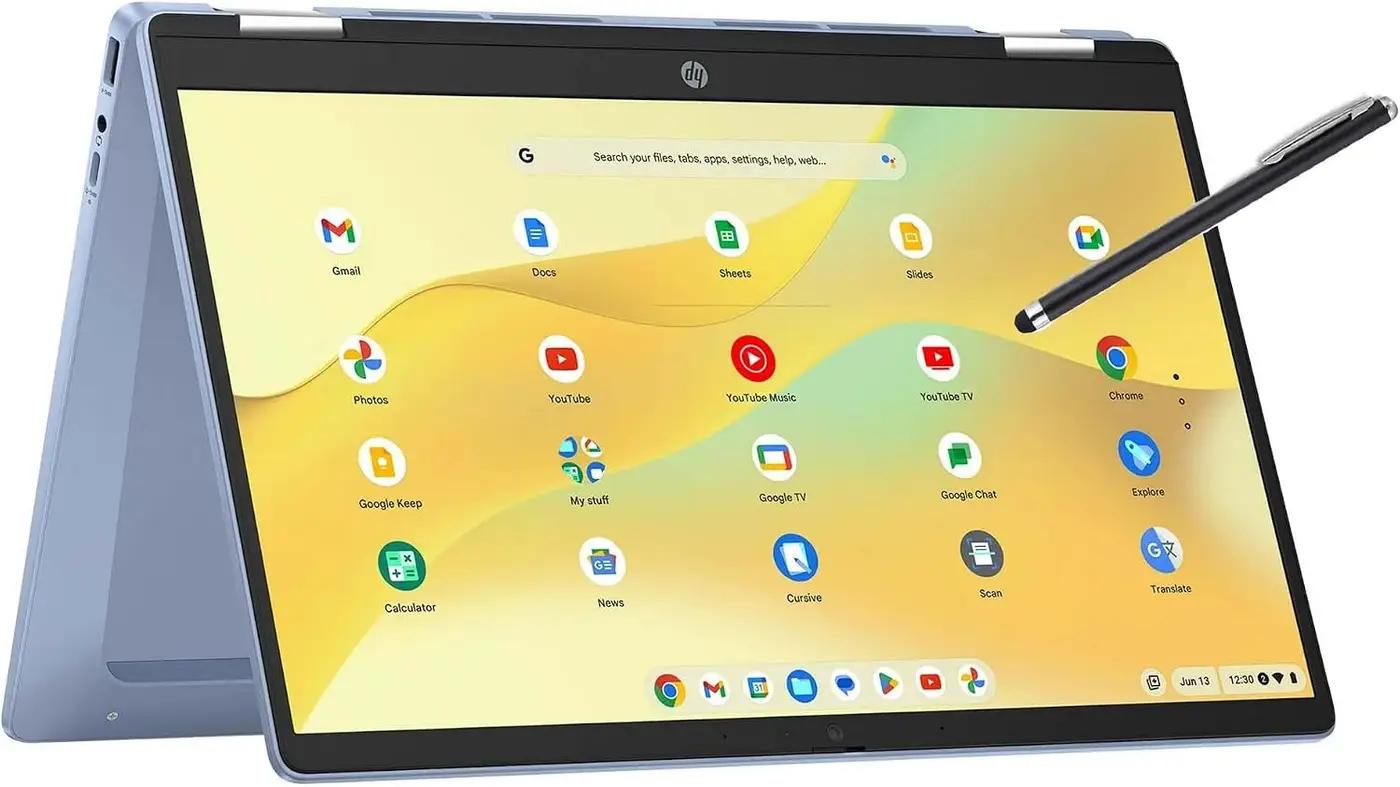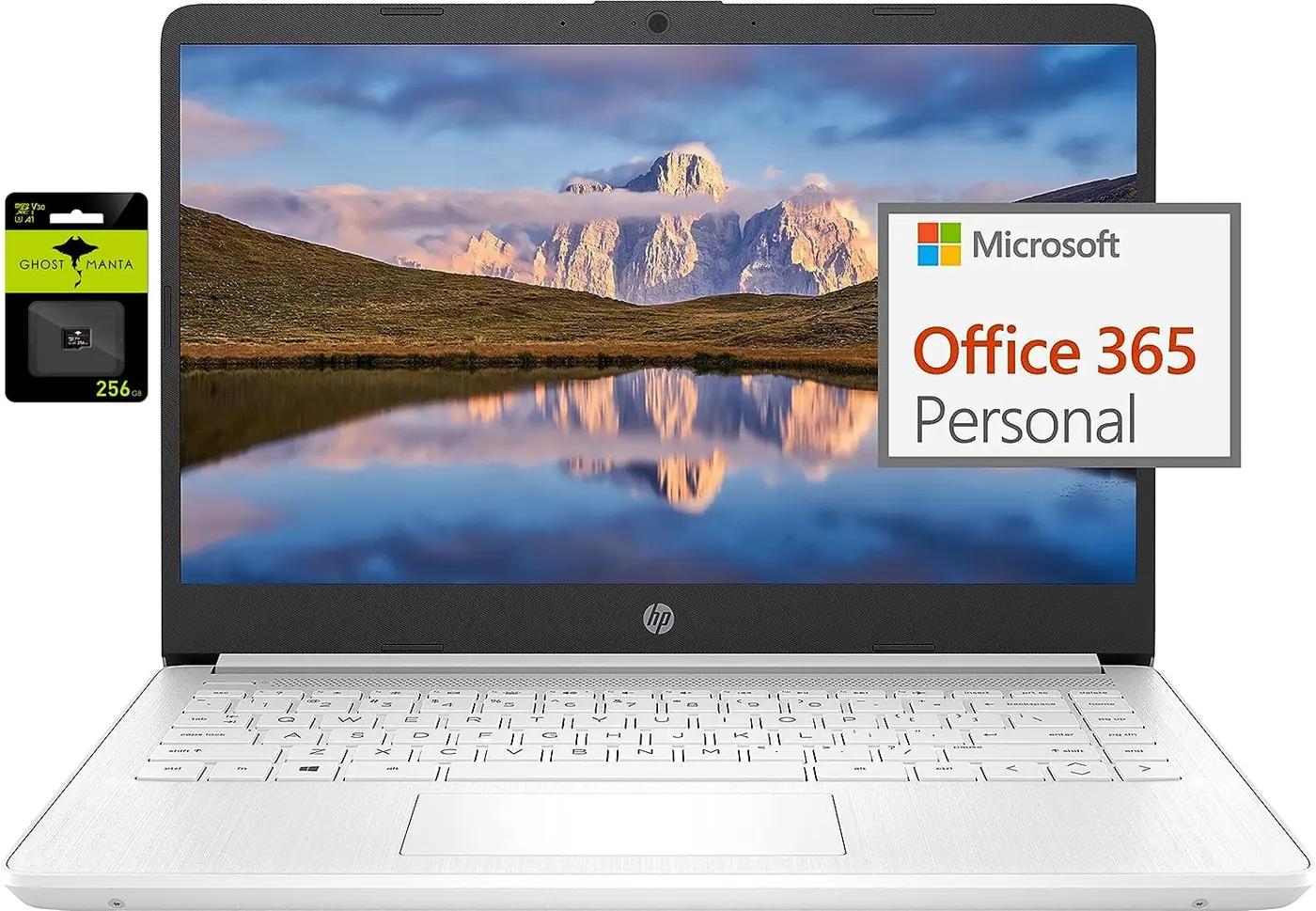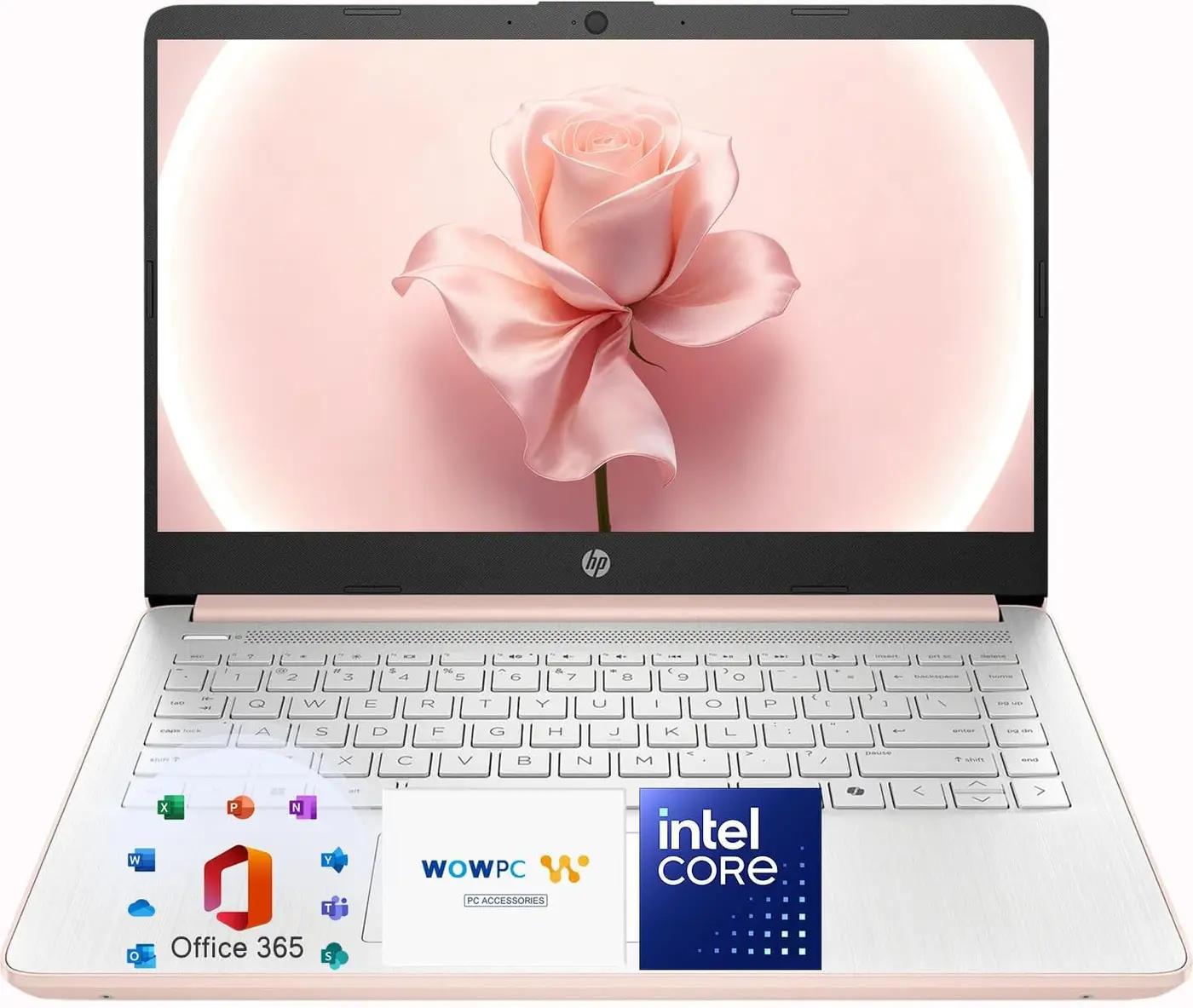
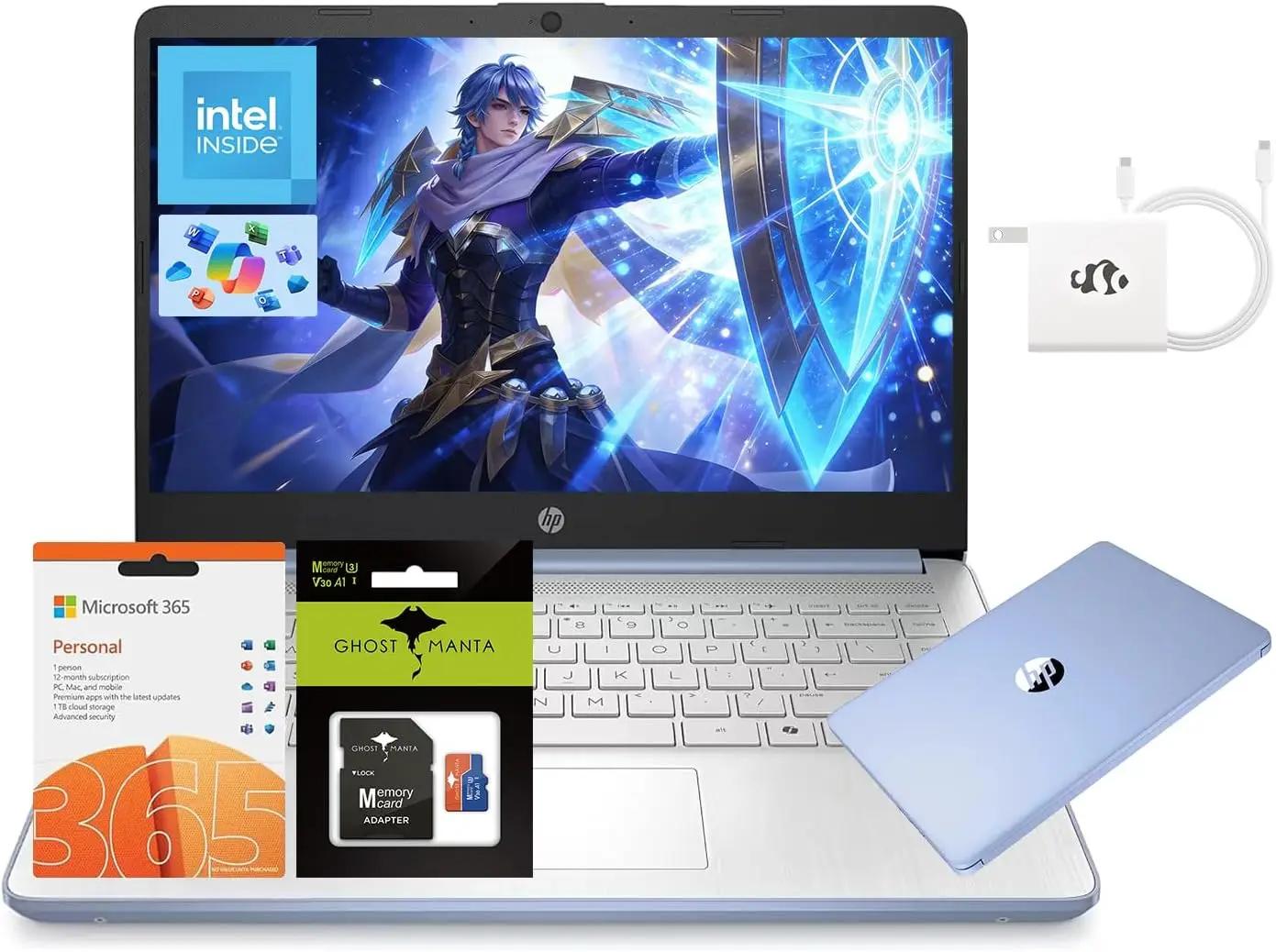
HP 14" Laptop, Quad-Core Processor(Beat i3), 4GB RAM 256GB Storage (128GB UFS+128GB SD Card), 1-Year Office 365 Copilot AI Wi-Fi 6 Win11 Computer for Business Creator Work Student Study W/Accessory
You save €25.00
About this item
Microprocessor: Intel Processor N150 (4 Cores, up to 3.6 GHz) Memory:4GB DDR4 RAM Display: 14" HD (1366 x 768), micro-edge Wireless connectivity: Wi-Fi 6 and Bluetooth 5.4 combo External ports: 1 x SuperSpeed USB Type-C 3.0 2 x SuperSpeed USB Type-A 3.0 Minimum dimensions (W x D x H): 12.76 x 8.86 x...
You save €25.00
Microprocessor: Intel Processor N150 (4 Cores, up to 3.6 GHz) Memory:4GB DDR4 RAM Display: 14" HD (1366 x 768), micro-edge Wireless connectivity: Wi-Fi 6 and Bluetooth 5.4 combo External ports: 1 x SuperSpeed USB Type-C 3.0 2 x SuperSpeed USB Type-A 3.0 Minimum dimensions (W x D x H): 12.76 x 8.86 x 0.71 inches Weight: 3.24 LB Battery life mixed usage: Up to 11 hours Webcam: HP Wide Vision 720p HD camera with camera shutter and integrated dual array digital microphones Operating system: Windows 11 Home Activate pre-installed Office 365: 1.Launch any Office app > 2.Start your activation by signing in with your Microsoft account(Create a account if you don't have one yet) > 3.Click "Activative Office" > 4.Sign in your account and follow the next prompts. > 5.Complete Step 1,2 and 3 > 6.Click on Refresh once Office is ready > 7.Open a document and accept the license agreement. Switching out of S mode in Windows 11 Windows 11 in S mode is designed for security and performance, exclusively running apps from the Microsoft Store. If you want to install an app that isn't available in the Microsoft Store, you'll need to switch out of S mode 1. On your PC running Windows 11 in S mode, open Settings > System > Activation. 2. In the Switch to Windows 11 Pro section, select Go to the Store. (If you also see an "Upgrade your edition of Windows" section, be careful not to click the "Go to the Store" link that appears there.) 3. On the Switch out of S mode (or similar) page that appears in the Microsoft Store, select the Get button. After you see a confirmation message on the page, you'll be able to install apps from outside of the Microsoft Store.
Features
- 【Powerful Quad-Core N150 for Business Task】 The Intel Processor N150 (Beat i3) offers 4-Core efficiency for the modern workplace. This HP 14" Business Laptop handles document processing and professional software with ease, ensuring you stay ahead of your daily business schedule.
- 【Complete Office Suite for Professionals】 With Microsoft 365 Office included for one year, you can manage your enterprise with Word, Excel, and PowerPoint. This HP Laptop is designed to help professionals maintain high productivity during business trips or remote work sessions.
- 【Optimized 4GB RAM for Office Workflow】 Tackle your professional tasks without lag. The 4GB RAM in this HP computer supports essential office applications and web-based tools, making it a reliable computer notebook for real-time collaboration and data entry.
- 【Hybrid 256GB Storage for Business Data】 Utilize 128GB UFS and a 128GB SD Card for high-speed data access and extra backup. This business Laptop provides the storage needed for large PDF files, client databases, and professional portfolios for on-the-go access.
- 【Win 11 Home for Professional Ease】 Navigate your workspace with the intuitive Win 11 Home in S Mode. This professional Laptop provides a streamlined user experience, ensuring that your software runs efficiently while maintaining a clutter-free digital environment for work.
- Color
- Sky Blue
- Hard-drive Size
- 128 GB
- Operating System
- Windows 11
- Other Special Features of the Product
- 1-Year Office 365, 720p Wecam, Bluetooth 5.4 wireless, Microsoft Copilot, Wi-Fi 6
- Graphics Description
- Integrated
- Graphics Coprocessor
- Integrated Graphics
- Hard Disk Description
- UFS
- Weight
- 3.24 Pounds
- Video Processor
- Intel
- Specific Uses for Product
- Business, Multimedia, Personal
- Webcam Capability
- Yes
- Automatic Backup Software Included
- Webcam
- Form Factor
- Netbook
- Hard Disk Interface
- Solid State
- Voltage
- 11.4 Volts
- Camera Description
- Front
- Graphics Ram Type
- Shared
- Compatible Devices
- External displays, projectors, USB devices, HDMI devices, wireless keyboards, mice, headphones
- Warranty Type
- Limited
- Item Dimensions L X W X Thickness
- 12.76"L x 8.86"W x 0.71"Th
- Chipset Type
- Intel Processor N150
- Hard Disk Rotational Speed
- 3200 RPM
- Optical Storage Device
- No Optical Drive
- Video Output
- HDMI
- Front Photo Sensor Resolution
- 720 MP
- Ram Memory Installed
- 4 GB
- Ram Memory Technology
- DDR4
- Memory Clock Speed
- 3200 MHz
- Ram Memory Maximum Size
- 4 GB
- Memory Speed
- 3200 MHz
- Ram Type
- DDR4 SDRAM
- Memory Slots Available
- 1
- Battery Cell Type
- Lithium Polymer
- Battery Life
- 7.5 Hours
- Battery Average Life Standby
- 11 Hours
- Number of Cells
- 1
- Lithium-battery Energy Content
- 45 Watt Hours
- Human-interface Input
- Keyboard, Keypad, Microphone
- Keyboard Description
- Ergonomic
- Notebook Pointing Device Description
- laptop
- Control Method
- App
- Processor Series
- Celeron N
- Processor Speed
- 3.6 GHz
- Processor Count
- 4
- Processor Brand
- Intel
- Cpu Model Number
- Intel Processor N150
- Cpu Model Generation
- 7th Gen
- Cpu Model Speed Maximum
- 3840 MHz
- Model
- HP Laptop
- Model Year
- 2025
- Built-in Media
- 1 Year Warranty, 1 x HP Laptop 4GB RAM 256GB Storage, 1 x Type-C 45W PD Fast Charger, 1 x User Manual, Windows 11
- Item Type Name
- laptop
- Warranty
- 1 Year Warranty
- Screen Size
- 14 Inches
- Resolution
- 720p
- Native Resolution
- 1366 x 768 pixels
- Display Type
- LED
- Display Resolution Maximum
- 1366x768 Pixels
- Display Technology
- LED
- Refresh Rate
- 60 Hz
- Connectivity Technology
- Wi-Fi
- Wireless Technology
- Wi-Fi
- Wireless Compability
- 802.11a/b/g/n/ac
- Cellular Technology
- WiFi
- Bluetooth Support?
- Yes
- Total Usb Ports
- 3
- Hardware Interface
- Bluetooth 5, Express Card, HDMI, Media Card, USB 3.0, USB 3.0 Type A, USB 3.1 Type C
- Number of Ports
- 4
- Total Number of Hdmi Ports
- 1
- Audio Output Type
- Speakers
- Hard Disk Size
- 128 GB
- Cpu Model
- Celeron N
- Ram Memory Installed Size
- 4 GB
- Special Feature
- 1-Year Office 365, 720p Wecam, Bluetooth 5.4 wireless, Microsoft Copilot, Wi-Fi 6
- Graphics Card Description
- Integrated
Related Products